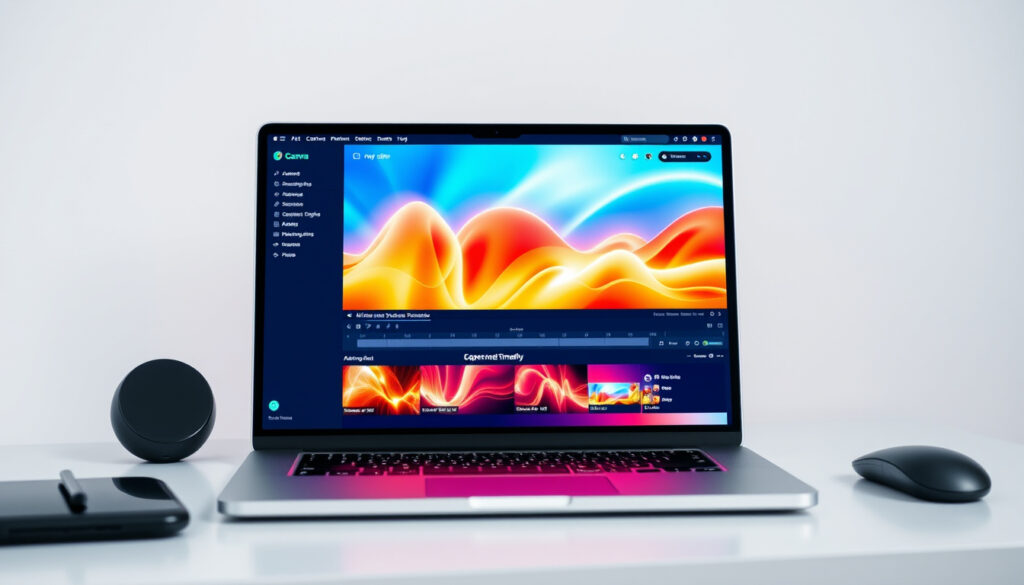
How to Make AI Videos: Free Tools Like Canva and Firefly
AI video generators now turn simple text prompts into polished clips in seconds — no film degree or production crew required. Free tiers from Canva, Adobe Firefly, and Gemini let beginners create without spending a cent.
Top Free Tools: Canva, Adobe Firefly · Text-to-Video Options: Gemini, Invideo · Key Generators: Luma Labs, Synthesia · Prompt-Based: Upload text or image · Major Platforms: 5 SERP leaders
Quick snapshot
- Canva offers text-to-video clips (Canva platform)
- Adobe Firefly is free for limited generations (Adobe official page)
- ChatGPT direct video output limitations (reports vary; OpenAI documentation incomplete)
- 100% free tier credit caps (platforms update limits without notice)
- Google Veo 3.1 released as top all-arounder in 2026 (Zapier 2026 guide)
- Kling 3.0 ranked with 8.1/10 score (Curious Refuge review)
- More tools adding text-to-video in 2026
- Credit limits expanding on free tiers
Six tools dominate the current landscape for beginners who want to generate AI videos without spending a cent — here’s how they stack up on the features that actually matter.
| Free Entry Point | Text Prompt Core | No Skills Required | Audio Included |
|---|---|---|---|
| Adobe Firefly online | All top 5 tools | Luma AI claim | Gemini Veo |
| VEED free tier | Canva | Runway | Invideo |
| Luma Dream Machine | Kapwing | getimg.ai | Renderforest |
How Can I Create an AI Video?
Creating an AI video starts with choosing a platform that fits your workflow and skill level. Most tools work directly in your browser — no software download required. The process typically involves writing a text prompt, selecting a format or style, and letting the AI generate the footage.
Steps with Canva
- Open Canva and navigate to the Video section
- Select “Text to Video” or browse AI video templates
- Enter a descriptive prompt (e.g., “aerial view of a city at sunset with cinematic lighting”)
- Choose aspect ratio (16:9 for YouTube, 9:16 for TikTok/Reels, 1:1 for Instagram)
- Click Generate and wait for the AI to render the clip
- Add music, transitions, or text overlays if desired
Canva’s strength is integration with its design ecosystem — you can add subtitles, filters, and brand elements without leaving the platform. The free tier includes limited generations, with watermark removal available on paid plans.
Using Adobe Firefly
- Visit firefly.adobe.com and sign in (free account available)
- Select Text to Video from the generation options
- Write a prompt up to 750 characters — be specific about scene, lighting, and motion
- Optionally upload a reference image to guide the style
- Click Generate; Adobe processes the request and returns a video clip
- Download or continue editing in Adobe Express
Adobe Firefly’s text-to-video is free for B-roll and effects, though generation credits refill on a schedule tied to your subscription tier. The prompt limit of 750 characters keeps descriptions focused, which actually improves output quality.
Gemini Process
- Access Gemini through Google AI Studio or gemini.google.com
- Type a prompt describing the video scene in detail
- Gemini’s Veo 3.1 integration powers the video generation
- The model can incorporate both text descriptions and reference images
- Sound is included in generated clips — a notable advantage over some competitors
Gemini sets itself apart by including audio in its generated videos, something many free tools charge extra for. The Veo 3.1 engine produces realistic motion and adheres closely to prompt instructions.
What is the Best Free AI Video Maker?
Sorting through the noise requires looking at what each free tier actually delivers — because “free” often means watermarks, limited credits, or locked features that make the output unusable for serious projects.
Canva AI Video Generator
Canva’s text-to-video AI generates clips from descriptive prompts. The platform’s free tier gives you access to core generation features, though the exact credit allocation varies and watermarks appear on outputs. Canva (the platform) states users can “turn text prompts into stunning AI-generated videos in just one click.”
Adobe Firefly Free Tier
Adobe Firefly offers free limited generations for text-to-video at firefly.adobe.com. According to Adobe (official product documentation), the tool supports prompts up to 750 characters and includes image upload as a style reference. B-roll and effects are free, making this valuable for adding stock-like footage to existing projects.
Invideo AI Options
Invideo’s Text to Clip feature lets you log in, select “Text to Clip,” write a prompt, and hit enter for instant video generation. The free plan includes limited minutes with watermark — useful for testing but restrictive for actual publishing.
Across all three platforms, watermarks remain the common thread on free tiers. If you’re publishing commercially, budget for a paid plan or use the free output for internal drafts and pitch videos only.
How to Make AI Videos from Text?
The core skill is prompt writing — and it’s different from writing for chatbots. AI video models respond to visual, spatial language: describe what you see, not what you mean.
Prompt Writing Tips
- Include camera angles: “aerial shot,” “close-up,” “wide angle”
- Specify lighting: “golden hour,” “neon-lit,” “natural light streaming through window”
- Describe motion: “slow pan,” “tracking shot,” “static frame”
- Mention style: “cinematic,” “documentary,” “viral TikTok aesthetic”
- Keep it under 100 words — more detail doesn’t always mean better output
Luma Labs Method
Luma Dream Machine free plan allows limited draft videos — ideal for brainstorming before committing to a paid tier. The interface is prompt-first: type your vision, select video length (typically 5-15 seconds), and generate. No editing required post-generation, though outputs benefit from refined prompts on retry.
Synthesia ChatGPT Integration
Synthesia offers AI video generation from text through its ChatGPT plugin integration. Users describe the scene, select an AI avatar (optional), and the platform renders talking-head or narration-style videos. This differs from cinematic generators — Synthesia targets corporate and educational content rather than creative B-roll.
Cinematic generators (Veo, Kling, Runway) excel at visual realism but can’t produce talking-head content with consistent characters. Avatar-based tools (Synthesia, some VEED features) do the opposite. Match the tool to your content type.
Can ChatGPT Make AI Videos?
The short answer: sort of, but indirectly. ChatGPT itself doesn’t generate video — but OpenAI’s Sora model, which powers video generation, is accessible through ChatGPT Plus.
Direct Capabilities
ChatGPT Plus subscribers at $20/month gain access to Sora, which produces watermarked 720p videos from text prompts. According to Zapier’s AI video generator rankings (comprehensive 2026 guide), Sora is included with ChatGPT Plus and produces watermarked 720p videos — useful for concept exploration but limited for professional output.
Integrations with Tools
Several platforms offer ChatGPT integrations for script-to-video workflows:
- Synthesia has an official ChatGPT plugin for generating video scripts before rendering
- Invideo’s AI script generator works alongside its video renderer
- Some third-party tools use ChatGPT API calls to write prompts based on topic input
Free Limitations
The free ChatGPT tier does not include video generation. Paying $20/month unlocks Sora access, but watermarks remain on outputs. For free video generation, stick to Adobe Firefly, VEED, Canva, or Luma — all offer complimentary access without a ChatGPT subscription.
ChatGPT Plus at $20/month gets you Sora video generation — but the same $20 could buy Adobe Firefly ($9.99/month) plus Runway ($15/month), giving broader tool access. Evaluate whether you need the ChatGPT ecosystem or just the video output.
How to Make AI Videos on YouTube or Phone?
YouTube and mobile each have specific requirements — optimizing for platform matters almost as much as the generation itself.
YouTube Optimization
- Use 16:9 aspect ratio for standard videos, 9:16 for YouTube Shorts
- Add subtitles — many viewers watch without sound
- Keep videos under 60 seconds for Shorts; longer form works for standard uploads
- AI-generated content must be disclosed per YouTube’s AI content policies
- Consider AI video for B-roll rather than full-length AI videos — audiences notice and engagement drops
Mobile Apps
Most AI video generators work in mobile browsers rather than dedicated apps:
- Canva has an iOS/Android app with text-to-video access
- Invideo offers a mobile-optimized web interface
- Luma app available on iOS for on-the-go generation
- Runway has a web app responsive to mobile browsers
Free Generators for Platforms
For YouTube Shorts and TikTok, VEED’s free tier is purpose-built for short-form content. VEED (platform documentation) describes its text-to-video AI as generating videos from prompts “with avatar or voice-only narration” — ideal for talking-head style content rather than cinematic B-roll.
The pattern shows free tools split between cinematic generators and avatar-based creators — choose based on whether you need visual realism or talking-head consistency.
Upsides
- No technical skills required — prompt writing is the main skill
- Free tiers available across Canva, Adobe Firefly, VEED, Luma
- Browser-based tools work on any device
- Generation takes seconds to minutes, not hours
- Multiple aspect ratios for different platforms built in
Downsides
- Watermarks on free outputs — unusable for commercial content
- Credit limits restrict heavy use on free tiers
- Prompt adherence varies — vague prompts produce generic outputs
- Talking-head consistency limited compared to avatar tools
- Audio quality inconsistent on some generators
AI Video Generator Comparison
Five leading platforms serve different priorities — here’s how they compare on pricing, features, and output quality based on 2026 market rankings.
| Tool | Free Tier | Paid Starting At | Video Quality | Best For |
|---|---|---|---|---|
| Google Veo 3.1 | Monthly credits via getimg.ai | $19.99/month (Pro) | Highest prompt adherence | Realistic cinematic footage |
| Adobe Firefly | Limited generations | $9.99/month | High, B-roll optimized | Stock footage replacement |
| Runway | Limited credits | $15/month | Cinematic editing focus | Creative post-production |
| Luma Dream Machine | Limited drafts | $9.99/month (Lite) | Good for brainstorming | Quick concept testing |
| Sora (via ChatGPT Plus) | No (requires $20 subscription) | $20/month | 720p watermarked | Text-to-concept exploration |
Google Veo 3.1 ranks as the best all-arounder, excelling in both prompt adherence and output realism — a combination that justifies its $19.99 Pro price tag for serious creators. Runway focuses on creative control post-generation rather than raw quality, while Adobe Firefly targets practical B-roll use cases.
Step-by-Step Workflow
A practical three-stage workflow covers most use cases — from concept to final export.
Stage 1: Ideation and Prompting
- Define your video goal: B-roll, full clip, social post, tutorial
- Write a visual prompt using camera, lighting, and style cues
- Test with 2-3 variations to find what works
- Save successful prompts as templates for future use
Stage 2: Generation and Selection
- Run your best prompt on 2-3 platforms simultaneously
- Review outputs for prompt adherence, visual quality, and artifacts
- Select the best result or combine clips in a video editor
- Check aspect ratio matches your target platform
Stage 3: Enhancement and Export
- Add subtitles with tools like CapCut or VEED
- Layer background music (check license terms)
- Adjust pacing with trim or speed changes
- Export at platform-recommended resolution and codec
- For YouTube: add intro/outro, ensure audio normalization
VEED (video creation platform) — “VEED’s text-to-video AI turns your words into complete videos — no camera, no production team needed.”
PixTeller (AI platform reviewer) — “getimg.ai earned the top spot because it solves the one problem every other platform struggles with: giving you access to all the best AI video models.”
For creators choosing a tool, the decision typically comes down to three factors: budget (free vs. paid), output quality requirements (watermark-free needed?), and workflow integration (existing design ecosystem vs. standalone tool). Adobe Firefly wins on pure free value; Canva wins for designers already in that ecosystem; Veo 3.1 wins for quality-obsessed creators willing to pay.
Related reading: How to Take a Screenshot on Mac · How to Play Wordle
youtube.com, youtube.com, veed.io, pixteller.com, youtube.com, kapwing.com, alloypress.com, invideo.io, youtube.com
Free platforms like Canva and Adobe Firefly shine for AI videos, much like options explored in German AI video guide for cost-free creation from text prompts.
Frequently asked questions
Is there an AI program to make videos?
Yes. Adobe Firefly, Canva, VEED, Luma Dream Machine, Runway, and Google Veo 3.1 all offer AI video generation from text prompts or images. Most have free tiers with limited credits or watermarks.
Is there a 100% free AI video maker?
Adobe Firefly offers genuinely free text-to-video generation with no initial payment required, though generation credits are limited. VEED and Canva also have free tiers. “Free” typically includes watermarks on outputs — check platform terms before commercial use.
How are people making AI videos?
Most creators use text-to-video generators with descriptive prompts specifying camera angles, lighting, and style. The workflow involves: write prompt → generate → select best output → enhance with subtitles/music → export. Platforms like Canva, VEED, and Adobe Firefly are most commonly used for quick turnaround.
Which AI generator is completely free?
No AI video generator is completely unlimited and watermark-free at $0. However, Adobe Firefly comes closest with genuinely free B-roll generation (750-character prompt limit). VEED’s free tier works for testing. All have credit caps that refill on paid plans.
Can ChatGPT create videos for free?
No. ChatGPT’s free tier does not include video generation. The $20/month ChatGPT Plus subscription includes Sora access, which produces watermarked 720p videos. For free video generation, use Adobe Firefly, VEED, or Canva instead.
What is Canva AI video generator?
Canva’s AI video generator is a text-to-video tool within the Canva platform that creates short clips from descriptive prompts. It integrates with Canva’s design ecosystem, allowing users to add subtitles, music, and brand elements in one place. The free tier includes limited generations with watermarks.
Is Adobe Firefly completely free?
Adobe Firefly’s text-to-video feature is free for limited generations — you can generate B-roll and effects without paying. The prompt limit is 750 characters. Paid plans starting at $9.99/month unlock more credits and remove usage limits.
More related posts
 Translate English to Myanmar: Tools for Zawgyi & Unicode
 Texas Rangers World Series Ring: 2023 Design, Price & Replicas
 Financial Consultant Near Me: Ireland Guide to Fees & Best Picks
 Things to Do in Colorado: Top Attractions, Best Time & Itinerary
 Brittany Snow Movies and TV Shows: Full Filmography & Guide
 Lamb Chops Near Me: Stores, Prices & Availability in Ireland
 Veterans Day 2025 Freebies: Confirmed Meals, Deals & Discounts
 Hot Wings Near Me 2026: Best Local Spots & KFC Prices